Running Windows Apps on Linux with Wine & Bottles
Running Windows Apps on Linux with Wine & Bottles
Have you ever thought—after switching from Windows to Linux—how do I use Photoshop, MS Office, or other Windows-only apps?
Linux doesn’t support .exe or .msi files out of the box. So what then?
That’s where two amazing free utilities come in: Wine and Bottles.
Wine
Wine stands for Wine Is Not an Emulator.
It’s not a virtual machine and doesn’t try to emulate Windows. Instead, Wine acts as a compatibility layer.
Here’s the idea:
- Windows apps depend on Windows APIs (system calls, graphics, registry, etc.) to run.
- Linux doesn’t have those APIs.
- Wine re-creates those APIs on Linux, so when a Windows app looks for
C:\Windows\System32or calls a Windows kernel function, Wine provides a Linux-based replacement.
In simple terms: the app thinks it’s running on Windows, but it’s actually running on Linux through Wine.
Bottles – Friendly Management
Managing Wine manually can be messy: different apps may need different settings, libraries, or even Wine versions.
That’s where Bottles comes in.
- Each “bottle” is like its own mini-Windows setup.
- You can install apps in separate bottles, so they don’t interfere with each other.
- Bottles makes it super easy to install dependencies like DirectX, .NET, or Visual C++ redistributables.
- It also integrates performance tweaks like DXVK (Direct3D → Vulkan) for gaming.
So Bottles = Wine + automation + a nice GUI.
Here’s Notepad++ running on Arch Linux with Wine:
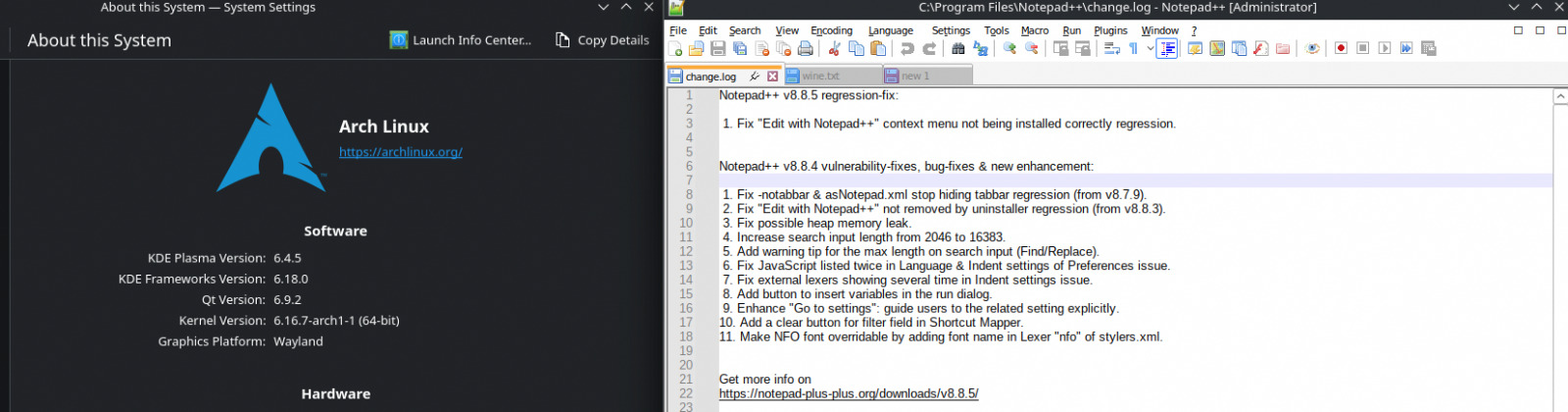
The .exe file installs inside a Wine prefix (a fake Windows drive).
When you launch it, Wine translates all Windows calls into Linux system calls.
Bottles keeps it isolated, so you can run Notepad++ alongside other Windows apps without conflict.